In Raiser’s Edge NXT Web View, open Gifts, choose Funds, and look up the fund by name or ID. Click a year on the Overview chart to see which gifts counted toward that year’s total. The Donors tab lists who gave. At Capital Business Solutions, our Raiser’s Edge consultants build Web View training around the fund reports your team uses.
Table of Contents
Step 1: Find a Fund in Web View
To see how much a fund received in a given year, start by opening its record in Raiser’s Edge NXT Web View.
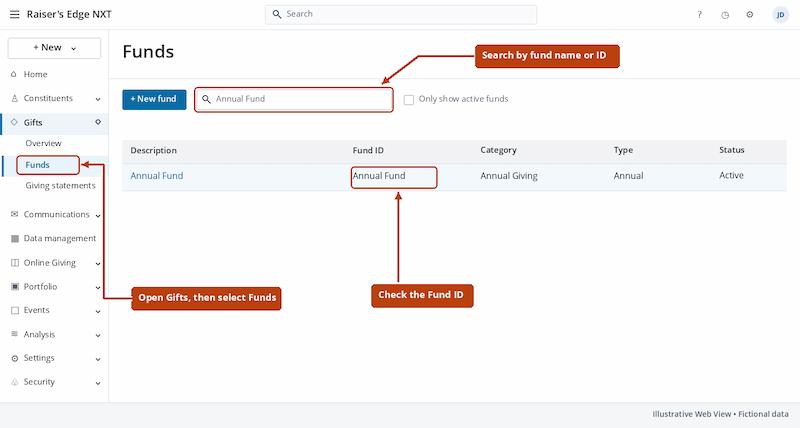
Open Gifts in the left menu and select Funds.
- Open Gifts in the left menu and select Funds.
- Search for the fund you want to review by name or ID. If several results have similar names, use the Fund ID to confirm which record to open.
- Open the fund and use the Gift date filter on the Overview tab to choose the year you want to review.
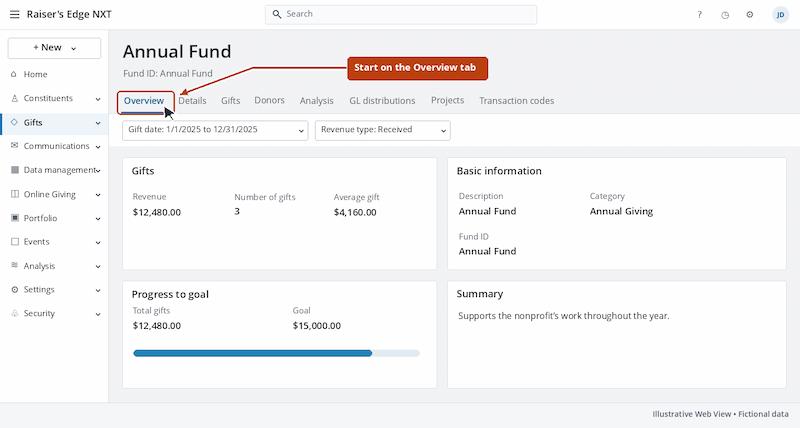
The examples in our images and Capital Business Solutions’ YouTube video tutorial walk you through identifying a fund titled “Annual Fund.”
Watch our video here:
Step 2: Review Fund Revenue, Gifts, and Donors
The fund record answers three questions development staff hear often. How much did we raise? Which gifts make up that total? Who gave? Each question has a different starting point.
Start With the Revenue Chart
The Overview tab shows fund revenue. Select a year on the interactive chart to see the gifts behind that year’s total.
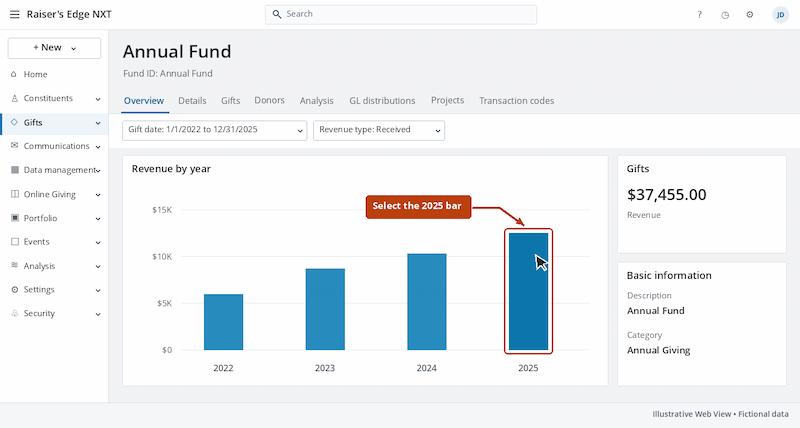
Before copying a figure into a committee report, check the date range and revenue type. If your committee wants to know how much money the fund received during the year, set the Revenue type filter to Received. That gives you the amount that came in during the period you’re reporting on.
Open an Individual Gift
On the Gifts tab, select the dollar amount for the gift you want to review. The Gift details panel opens alongside the list, so you can check the date, amount, and fund without leaving the page.
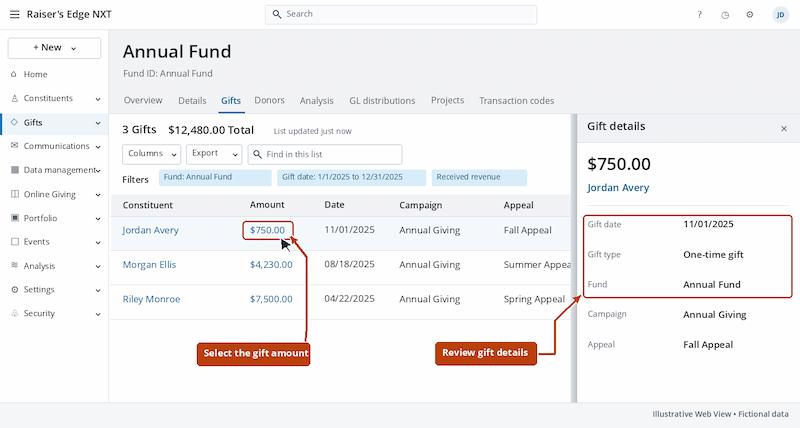
In our example, selecting Jordan Avery’s $750.00 gift shows that it was recorded under Annual Fund with a gift date of November 1, 2025. If you’re checking October’s numbers and expected to see this gift, the date tells you to look for it in November’s total.
See Who Gave to the Fund
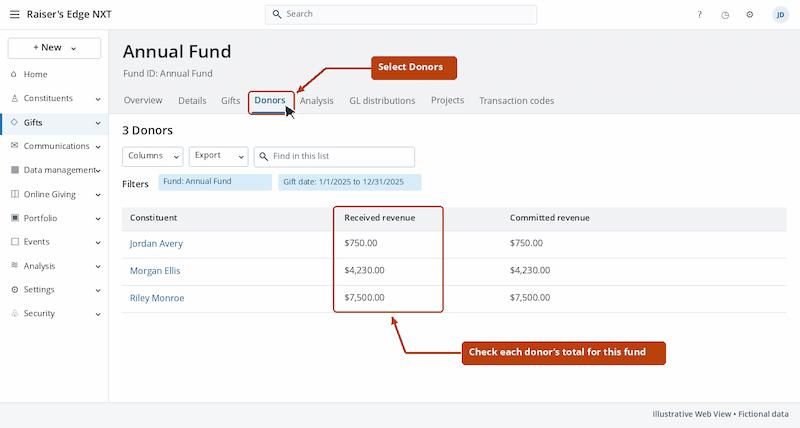
Open the fund record and select Donors. The list shows who gave to that fund.
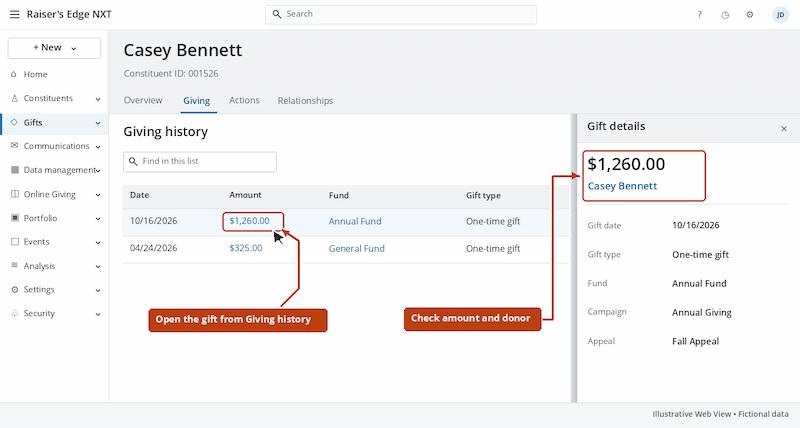
If you’re getting ready to thank a donor and want to check when they gave, open their constituent record and go to Giving history. Select a dollar amount to see the gift details. Here, you’ll see the history shows Casey Bennett’s $1,260 gift to the Annual Fund on October 16, 2026. Casey’s history also includes a gift to the General Fund, so check the Fund field to make sure you’re looking at the gift you want to recognize at this time.
Step 3: Review Financial Edge NXT Distributions
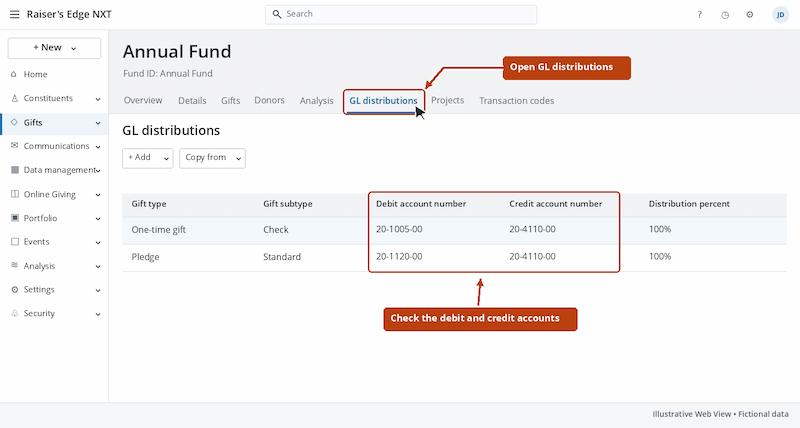
If your nonprofit uses Raiser’s Edge NXT with Financial Edge NXT, staff with the right permissions can check which accounts a gift will post to. Open the fund record and select GL distributions. Find the row that matches the gift type and, if applicable, the subtype.
If your nonprofit also tracks gifts by project or transaction code, check the Projects and Transaction codes tabs.
If you’re setting up a new fund or changing its accounts, have development confirm which gifts belong in the fund and have your organization’s finance department verify the account numbers. After the first gift posts, finance can check the entry in Financial Edge NXT to confirm it reached the expected accounts.
Benefits of Raiser’s Edge NXT Web View Training
Our Raiser’s Edge consultants teach your nonprofit team how to handle everyday fundraising tasks in Web View. We build each session around the work your staff needs to do, from checking fund totals to reviewing individual gifts.
Capital Business Solutions prepares nonprofit finance teams to:
- Find fund, gift, and donor records in Web View
- Use date and revenue filters to pull the right totals for reports
- Trace a fund total back to the gifts that make it up
- Review GL distributions with your finance team if you use Financial Edge NXT
- Work through the tasks your staff still does in Database View with our Raiser’s Edge consultants

Raiser’s Edge NXT Fund Management FAQs
Should Our Nonprofit Keep Using Database View Until We’re Trained on Web View?
Yes, your team can keep using Database View for familiar tasks while learning Web View. Start with one fund your team knows well. Open it in Web View, review its gifts, and compare the revenue total with a report you already run in Database View. Once staff are comfortable finding and checking that information, move on to gift entry and fund updates.
Capital Business Solutions provides Raiser’s Edge NXT Web View training to prepare your team for day-to-day workflow so they can adapt to the shift in easy, approachable phases.
How Do I See How Much of a Split Gift Went to Each Fund in Web View?
In your gift list, select Columns, check Gift splits, and select Apply changes. The new column shows the fund and dollar amount for each part of the gift. If your list is filtered to one fund, the column still shows the gift’s full breakdown.
How Do I Correct a Gift I Entered Under the Wrong Fund in Web View?
For an unposted gift, open the gift record and select Edit ? Gift details ? Edit gift splits.
Choose the correct fund for the affected split and save. If the gift has already posted to Financial Edge NXT, check with finance before making the change so they can record the adjustment and confirm it posts to the correct account.
What Are GL Distributions in Raiser’s Edge NXT?
General ledger (GL) distributions tell Raiser’s Edge NXT which accounts to debit and credit when a gift posts. A check and a pledge to the same fund can use different accounts. In Web View, open the fund’s GL distributions tab to check the row for the gift type you’re reviewing.
Do We Need to Create a New Fund in Web View for a Restricted Gift?
Use an existing fund if its purpose matches the donor’s restriction. For example, if a donor gives specifically for student travel, look for a fund that covers student travel before creating one. If you can’t find a match, review your gift acceptance policy and ask finance how to record the gift.
Schedule Raiser’s Edge NXT Web View Training for Your Team
If your team still switches back to Database View to check a fund total, bring that workflow to your training session. Our Raiser’s Edge consultants will walk through it with you in Web View, from finding the fund to checking which gifts make up the total. If development and finance usually run those reports separately, invite both teams so everyone knows where the numbers come from.
Capital Business Solutions is a certified Blackbaud channel partner with more than 25 years of nonprofit software experience. Call (888) 249-6008 or request a custom training session for your nonproift by filling out our contact form.