Capital Business Solutions is a nonprofit accounting software consulting and training firm and certified Blackbaud Channel Partner that helps organizations get more useful reporting from Financial Edge NXT. Through our Financial Edge Generate Reports tutorial, finance teams can preview reports, generate files in several formats, retrieve completed reports from notifications, schedule recurring delivery, and review chart health issues that can affect reporting accuracy and performance.
The Financial Edge NXT software can handle much of the report-generation process in the background, but the quality of the final report still depends on the report parameters, account structure, coding, and data behind it.
How Do You Generate Reports in Financial Edge NXT?
From Analysis > Reports, Financial Edge NXT users can create, preview, generate, and manage financial reports. The workflow is designed so accounting staff do not have to remain on the Reports page while a file processes.
Here are the Financial Edge Generate Reports tutorial steps so your nonprofit can successfully navigate the software.
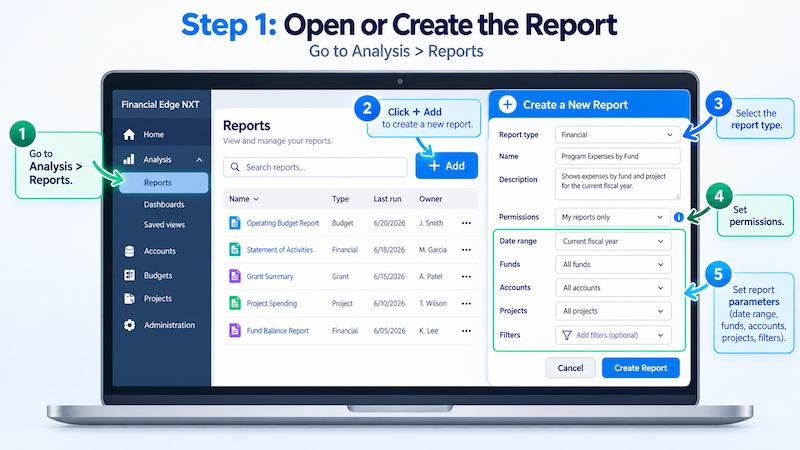
Step 1: Open or Create the Report
Go to Analysis > Reports and locate the report you want to generate.
To create a new report, select Add, choose the report type, and enter the applicable name, description, permissions, and parameters. Those parameters control what information appears in the finished report, so check details such as reporting dates, funds, accounts, projects, and other applicable filters before generating it.
Financial Edge NXT also bases available report types on user permissions.
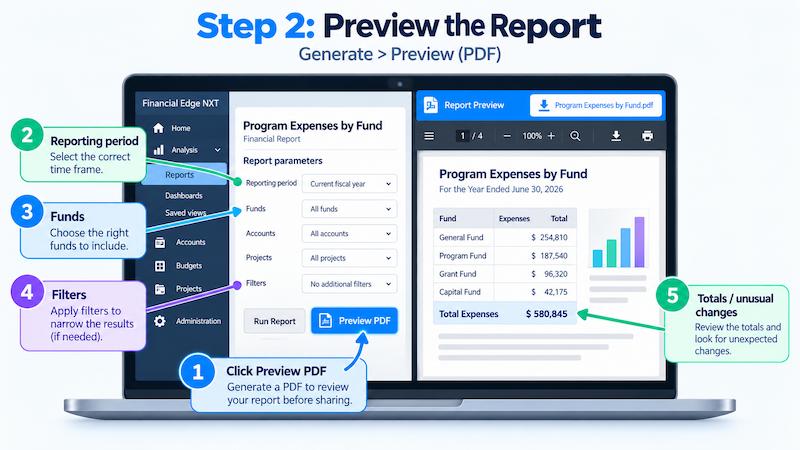
Step 2: Preview the Report
For reports where the preview option is available, open the report parameters and select Generate > Preview (PDF).
Financial Edge NXT processes the preview and provides a Preview file link when it is complete. Open the PDF and review the report before distributing it.
For a month-end financial statement, grant report, department report, or board packet, a preview can catch a wrong reporting period, missing fund, incorrect filter, or unexpected total before someone else receives the file.
Step 3: Select the Right Report Format
Financial Edge Generate Reports tutorial provides four primary options:
- Generate PDF: Creates a PDF version of the report.
- Generate Excel: Creates an Excel workbook that may contain multiple report titles and column headers.
- Generate Excel data: Creates an Excel file with one report title and one set of column headers. Blackbaud recommends this format when the data will be used for formulas or additional calculations.
- Generate Word: Creates a Microsoft Word version of the report.
The right format depends on what happens after the report is generated. A PDF may work well for a board packet or finished financial statement. Excel data is more useful when accounting staff needs to sort figures, run calculations, or continue analyzing the data.

Step 4: Continue Working While the Report Generates
You do not have to keep the Reports page open while Financial Edge NXT processes the file.
Reports generate in the background, so you can continue working elsewhere in Financial Edge NXT, move to another program, or close the browser. The report continues processing.

Step 5: Retrieve the Completed Report
The final step in our Financial Edge Generate Reports tutorial brings you to completing the process. Financial Edge NXT posts a message under the notification bell in the top-level navigation. Select the message to access the finished report. Reports can be opened, reviewed, edited where applicable, and printed from there.
These report notifications remain available for three days, so the notification list should not be treated as permanent file storage.

How Does Chart Health Advisor Affect Financial Edge NXT Reporting?
Generating a report is only one part of the process. The underlying chart of accounts can also affect how easily staff code transactions and produce reliable reports.
Financial Edge NXT’s Chart Health Advisor evaluates the chart organizer structure for conditions that can contribute to slow reporting, inconsistent coding, unnecessary complexity, and data integrity concerns. Users can open it from General ledger > Overview. The current chart health score and open findings can also be displayed on the Financial Edge NXT Home page.
What Is the Financial Edge NXT Chart Health Score?
The chart health score is a composite score from 0 to 100 that reflects the condition of the organization’s account structure.
Blackbaud’s nonprofit software divides scores into three status bands:
- Healthy: 80 through 100
- Moderate: 60 through 79
- At risk: Below 59
Users can select Refresh health score to run the latest analysis. Blackbaud allows the results to be manually refreshed every 30 minutes.

What Does Chart Health Advisor Identify?
Select View all findings to see the conditions Financial Edge NXT has identified within the chart structure.
Examples include:
- Dormant accounts: Full account strings with no activity for at least 12 months and a zero balance.
- Other dormant records: Funds, account codes, projects, and other records that are no longer active.
- Low-usage values: Segment values that see very little activity.
- Never-used records or values: Accounts, projects, funds, account codes, or other values that have never been used for transactions.
Depending on the record and finding, Financial Edge NXT may recommend locking it, making it inactive, reviewing its usage, or deleting an unused record.
When Can Financial Edge Training Improve Your Reporting Process?
Knowing how to click Generate PDF or schedule a recurring report does not always solve the larger reporting problem. If your staff is using Blackbaud’s nonprofit software solutions, and continually rebuild reports, export data to correct it elsewhere, struggle to find the right accounts or projects, or code similar activity in different ways, the issue may involve more than the report itself.
Capital Business Solutions works with nonprofit organizations to connect their accounting requirements with the way Financial Edge software is configured and used.
Our Financial Edge training can address report setup, chart structure, staff workflows, software configuration, and other issues affecting day-to-day use.
Through Financial Edge consulting and training, our team also helps nonprofits determine whether recurring reporting problems point to a report setting, inconsistent workflow, permissions issue, chart configuration, or another area that needs attention.

Schedule Your Financial Edge Generate Report Tutorial Today
Get help with reporting, software workflows, chart structure, and day-to-day use of Financial Edge NXT. Contact Capital Business Solutions to schedule a consultation and discuss the training or support your nonprofit team needs.
Get started by calling us at (888) 249-6008 or filling out our contact form.