Nonprofit finance teams using Financial Edge NXT can easily customize the Financial Edge home page in Web View. By choosing the tiles you want to see, adding shortcuts to frequently used pages, arranging information around your daily work, and configuring individual tiles, users can plan their own layout to match their workflow.
Learning how to set up your homepage is a good way to become acclimated to working more comfortably in Financial Edge NXT Web View.
What Can Users Customize on the Financial Edge NXT Home Page?

The homepage of Blackbaud nonprofit Financial Edge software is meant to put useful information closer to where you start your work. Instead of treating it as a fixed dashboard that is universal for every user, Financial Edge NXT lets individual users decide which available resources deserve that primary space.
The main areas you can customize to your individual needs are:
- Tiles, which display snapshots of financial data and provide access to additional details
- Quick links, which create shortcuts to Financial Edge NXT pages or outside websites
- Add-in links, when compatible SKY Add-Ins have been enabled for the organization’s environment
Once the tiles are on your home page, you can also change their order and configure supported tiles to control what information appears and how it appears.
Check Your Financial Edge NXT Permissions First
Before spending time looking for a particular tile, remember that the home page follows Financial Edge NXT user permissions. You may not see every option another member of your finance team sees based on who is provided permission to access a particular part of the system.
For example, Bank Accounts requires special permissions to access, as do other areas including Closing Assistant, which requires General Ledger access, and Project Budget vs Actual, which requires access to projects.
If a tile described in your Financial Edge training isn’t available in your account, check with your organization’s systems administrator before assuming the feature is missing.
Steps to Customize Your Financial Edge Software Homepage
Customizing your Financial Edge NXT Home page starts with deciding which information and shortcuts you use most often. From the Customize page menu, you can add or remove tiles, create Quick Links, review available Add-In links, and arrange the page so frequently used financial data is easier to access.
Step 1: Add Tiles to Your Financial Edge NXT Page
Tiles provide at-a-glance views of selected organizational data, allowing users to check key information without opening a separate area of Financial Edge NXT first. Depending on the tile you want to add, you may include bank account balances, budget-to-actual figures, unposted transactions, favorite reports, queries, credit card activity, or payment information.
Many of these tiles act as starting points for deeper review, letting users open the related record, report, account, or workflow when more detail is needed.
To add to the home page, from Home, select Customize page. Under Tiles, review the choices available to your account and select the tiles you want displayed.
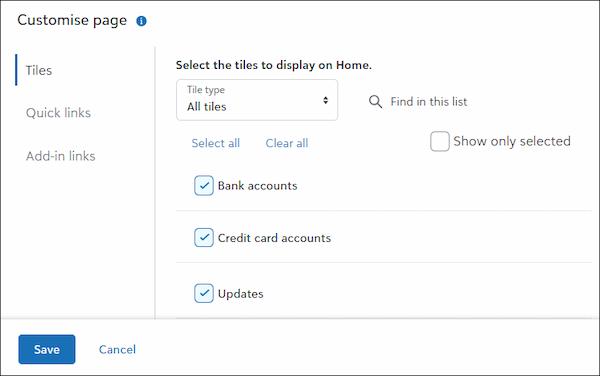
Tip: Don’t add every single available tile simply because you can. A crowded home page can defeat the reason for customizing it in the first place. Instead, think about what you check repeatedly during a normal work week, then build your page around that need, not around the number of available features within Web View.
Step 2: Add Quick Links for Pages You Use Regularly
Quick Links are useful when a task requires several clicks through the normal navigation process, and you know you return to that page regularly. They can point to pages within Financial Edge NXT or to websites outside the software. A finance team could use this area for frequently referenced internal resources, policy documentation, reporting sites, or other approved systems used alongside its Blackbaud Financial Edge software.
To create a Quick Link:
- Open the Customize page and select Quick Links
- Select Add quick link
- Enter the full URL
- Give the shortcut a recognizable display name
- Save your changes
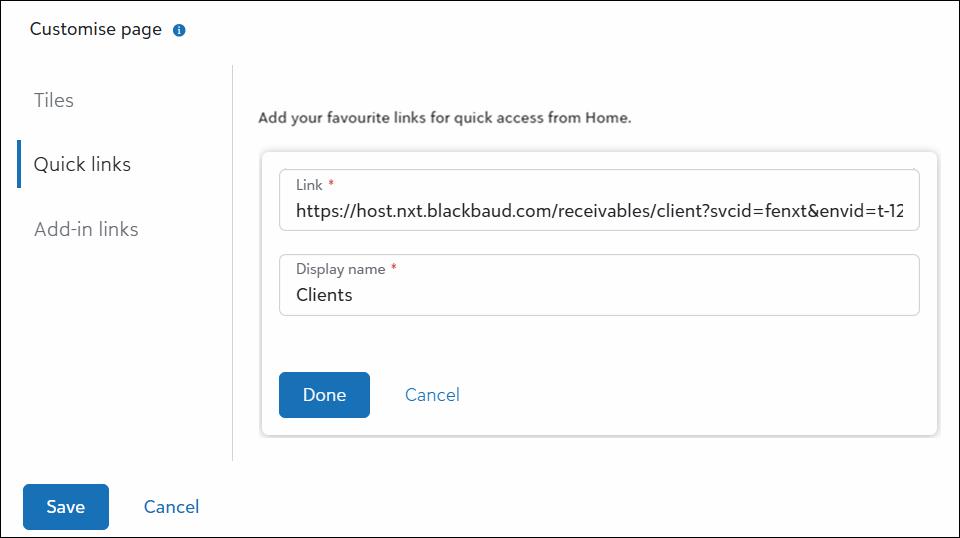
Tip: There is one small detail worth special attention so you are sure you’re getting it right:
-
When linking to another Financial Edge NXT page, copy the entire address shown by the browser, including the
?envid=portion. Leaving part of that address behind can prevent the shortcut from pointing where you intended. - External quick links normally open in a new browser tab, and Financial Edge NXT links open in the current tab. If you want a link in another tab instead, use Ctrl+Click on Windows or Linux, Command+Click on Mac, or use the browser’s right-click Open Link in New Tab option.
Step 3: Use Add-In Links When They Are Available
Some nonprofit organizations extend Blackbaud’s Financial Edge NXT through SKY Add-Ins. These are applications that run outside Financial Edge software but integrate into the Blackbaud interface. They may be developed by Blackbaud, partners, third-party developers, or an organization’s own developers.
When an appropriate SKY Add-In includes a Home page action, users may be able to place an Add-In link directly on the user’s home page.
To do this, go to the Customize page, select Add-In links, and review the available choices.
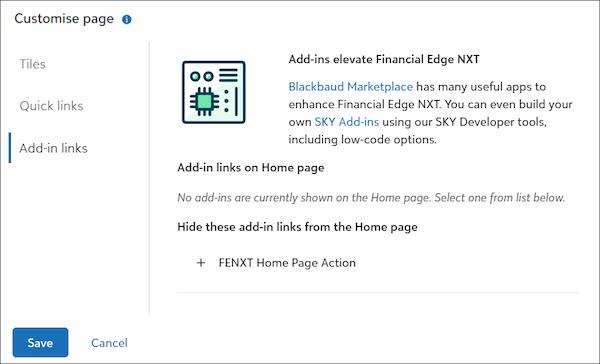
Tip: Don’t be surprised if the section is empty. Add-in links only appear when the necessary SKY Add-ins have been enabled for your environment and applicable home page actions are defined. Applications with SKY Add-Ins must be connected to the Blackbaud environment by a user with the appropriate Marketplace application permissions.
Put Your Most Useful Financial Information First
Adding tiles is only part of the setup for users organizing their Web View home page for Financial Edge NXT. The software lets you use the drag icon in the upper-right corner of a tile to move it to the location you prefer.
A good starting point is to place the items that require frequent attention near the top. That might mean bank information for one employee, budget-to-actual data for another, and outstanding closing activity for someone responsible for month-end work.
Revisit Your Home Page as Your Role Changes
Your first home page setup in Financial Edge NXT doesn’t have to be permanent. Blackbaud specifically allows users to add, remove, rearrange, and adjust content over time, and those individual changes don’t alter anyone else’s page, just your own.
This level of flexibility is useful after a role change, during audit preparation, when responsibilities shift between employees, or when your nonprofit team starts using more functions in Web View.
It is also worth revisiting your homepage layout after additional Financial Edge training. Once users understand how reports, queries, budgets, closing tools, and other parts of the system fit into their daily routines, they usually have a much clearer idea of what deserves immediate access.
Financial Edge Training Goes Beyond Basic Navigation
Knowing which button adds a tile is easy, but deciding how Web View should fit your organization’s accounting procedures takes more thought. Capital Business Solutions provides Financial Edge consulting for nonprofit teams using Financial Edge NXT, including support for Web View.
Financial Edge training covers areas such as:
- Day-to-day navigation
- Reporting
- Transaction management
- Budgeting
- Implementation
- System changes
- Workflows specific to an organization
At Capital Business Solutions, our Financial Edge training team works with nonprofits for ongoing, continued consulting support after training. As a Blackbaud Channel partner, we provide implementation, training, support, and related services for organizations using Blackbaud products as well as finance teams adapting to Web View.
Get More From Financial Edge NXT Web View Today
A well-organized Financial Edge NXT home page won’t change your accounting procedures. Still, it can cut down on unnecessary navigation and put the information you check most often closer to the start of your workday.
If your nonprofit is moving more of its accounting processes into Web View, Capital Business Solutions’ Financial Edge training can help your staff connect the software’s features to the reports, transactions, budgets, closing procedures, and other workflows that matter most.
To learn more, contact our Financial Edge consulting team today by calling (888) 249-6008 or filling out our contact form to get started.