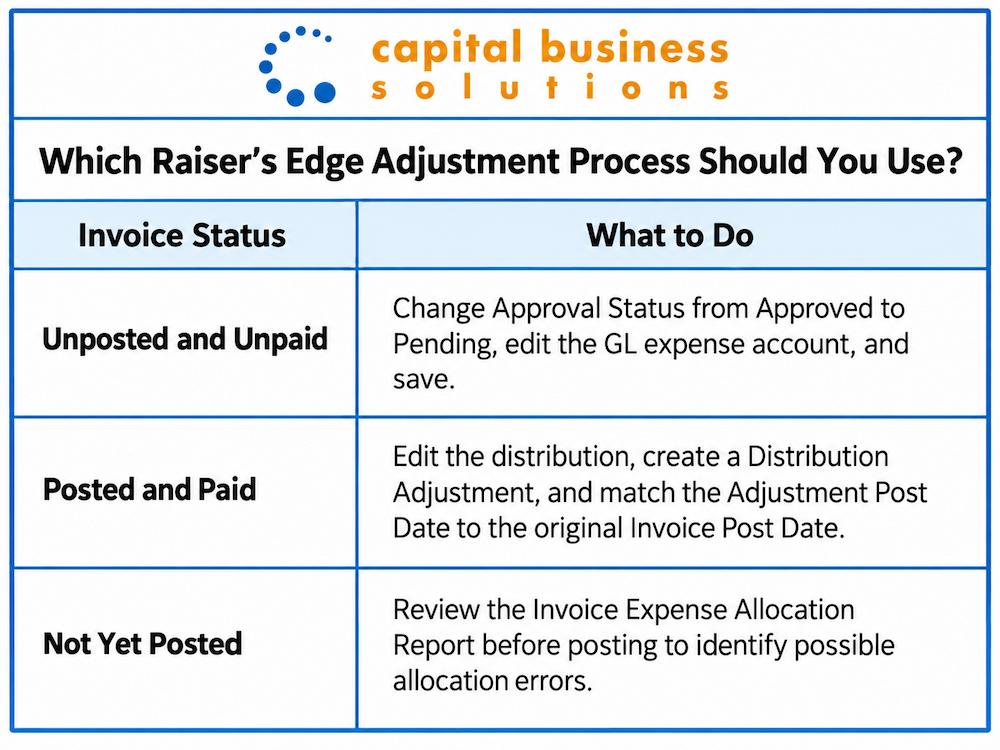
To adjust the General Ledger distribution on an Accounts Payable (AP) invoice, start by checking whether the invoice has been posted and paid yet. For unpaid invoices, open the invoice and correct the expense account directly. For paid and posted invoices, update the debit account and create a distribution adjustment so the correction is included the next time the subledger is posted.
At Capital Business Solutions, our Raiser’s Edge consultants support nonprofit teams using Blackbaud financial software in their day-to-day work. In Raiser’s Edge NXT, the steps for correcting a GL distribution depend mainly on the invoice status. Knowing whether an invoice is still unposted or has already been paid and posted tells you which correction process to use.
Table of Contents
Watch: How to Adjust General Ledger Distribution In Blackbaud Software
This walkthrough from our Raiser’s Edge consultants at Capital Business Solutions demonstrates how nonprofit finance teams can adjust GL distribution for Accounts Payable invoices.
Why Would You Need to Change an AP Invoice GL Distribution?
You may need to change an AP invoice GL distribution when the invoice amount is correct, but the expense was assigned to the wrong account or accounting segment. Catching the error keeps financial reports aligned with where the expense actually belongs.
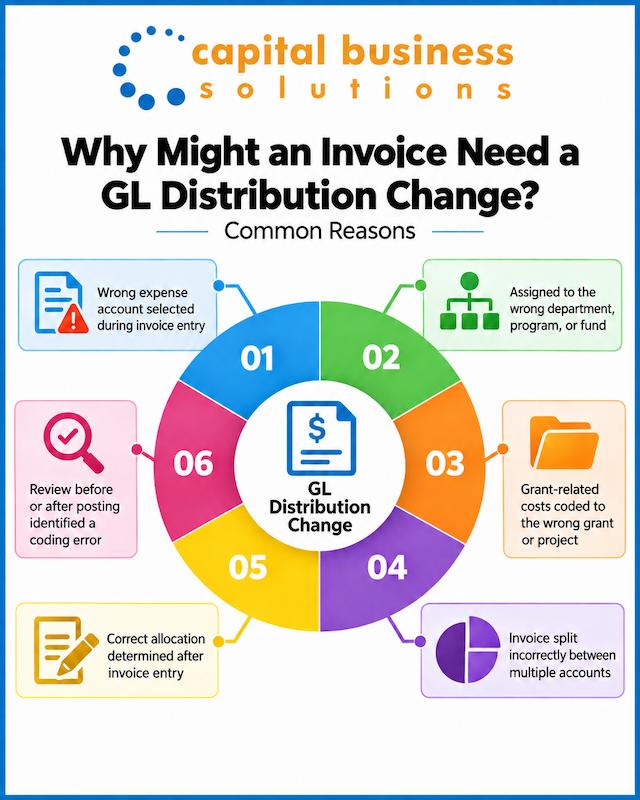
Common reasons for changing a distribution include:
- The wrong expense account was selected during invoice entry.
- An expense was assigned to the wrong department, program, or fund.
- Grant-related costs were coded to the wrong grant or project.
- An invoice was split incorrectly between multiple accounts.
- The correct allocation was determined after the invoice was entered.
- A review before or after posting identified a coding error.
Accurate allocation is especially relevant for nonprofits. The IRS instructions for Form 990 state that organizations completing the Statement of Functional Expenses must report amounts accurately and document their allocation methods.
Correcting the GL distribution keeps the accounting record consistent with how the expense should actually be reported.
How Do You Adjust an Unposted and Unpaid Invoice?
An invoice that is still unposted and unpaid can usually be corrected directly. In the Raiser’s Edge / Financial Edge workflow, the key is making sure the invoice is editable before changing the expense account.
Change the Approval Status to Pending
Locate the invoice and select the three-dot menu next to it to open the editing options.
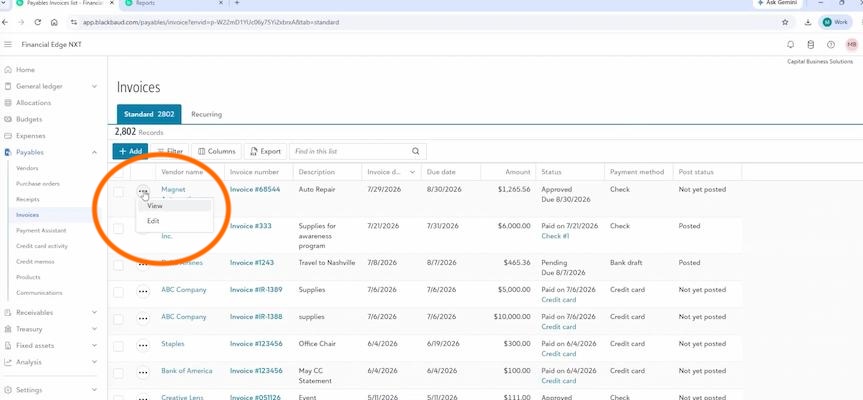
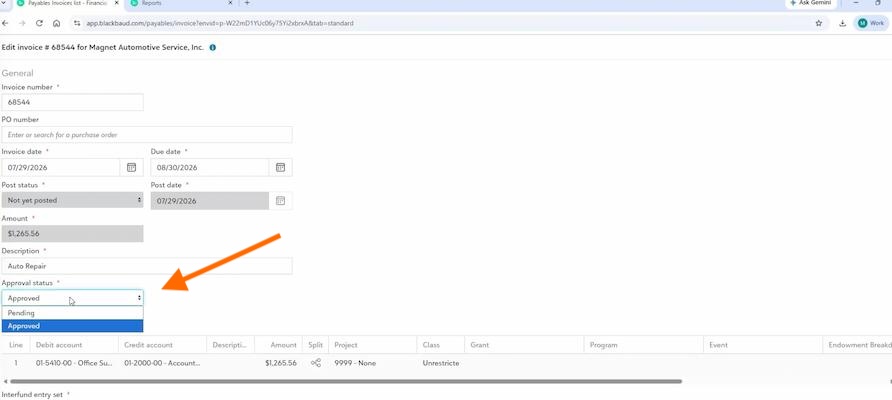
If the invoice has an Approved status, you may find that the GL expense account is locked. Change the Approval Status from Approved to Pending, then save the invoice.
Reopen the invoice for editing. You can now update the GL expense account to the correct account and save the change.
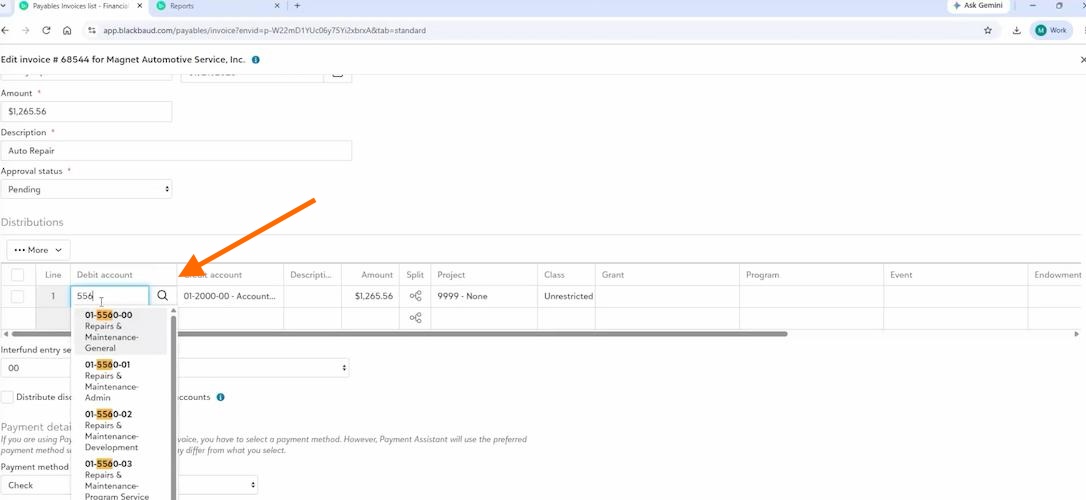
Because the invoice has not yet been posted, you do not need to create a separate distribution adjustment.
In short: Approved ? Pending ? Edit GL expense account ? Save.
How Do You Adjust a Posted and Paid Invoice?
A posted and paid invoice requires a different process because the original distribution has already moved through posting.
Locate the invoice, select the three-dot menu, and choose the option to edit it. From the invoice details, select the Debit Account information and change the distribution to the correct expense account.
When you save the change, Raiser’s Edge opens the Create Distribution Adjustment window.
Complete the Distribution Adjustment
Enter the information requested in the adjustment window, including the reason for the correction.
For example, you might enter:
Reason: Incorrect distribution
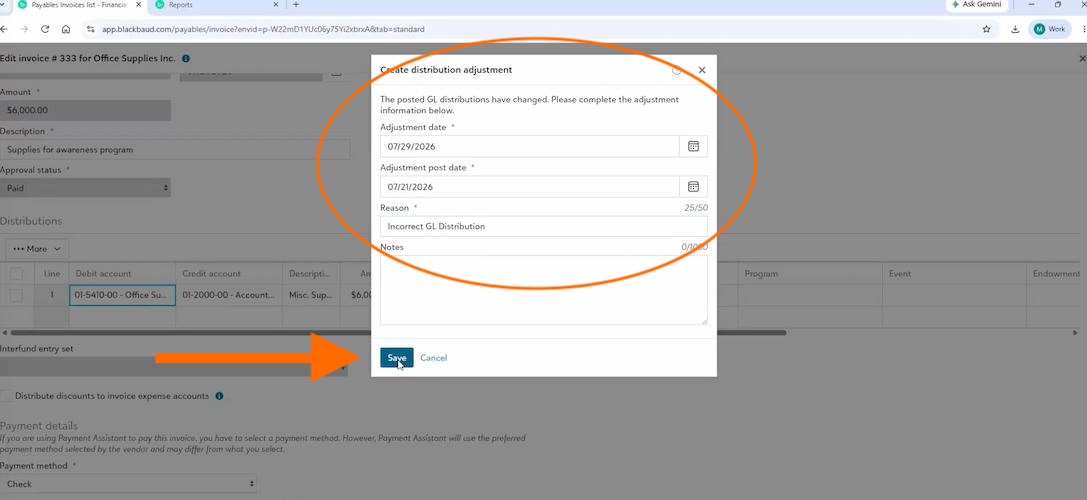
The Adjustment Post Date should match the original Invoice Post Date shown for the invoice. This keeps the adjustment associated with the same accounting period as the original posting in the workflow.
Save the distribution adjustment when the information is complete.
The adjustment will then be picked up the next time the applicable subledger is posted.
In short: Edit distribution ? Save ? Create Distribution Adjustment ? Match Adjustment Post Date to original Invoice Post Date ? Save.
How Can You Catch GL Distribution Errors Before Posting?
Correcting a mistake is possible, but catching it before posting is simpler.
The pro-tip from our Raiser’s Edge consultants is to run the Invoice Expense Allocation Report before posting your subledger entries.
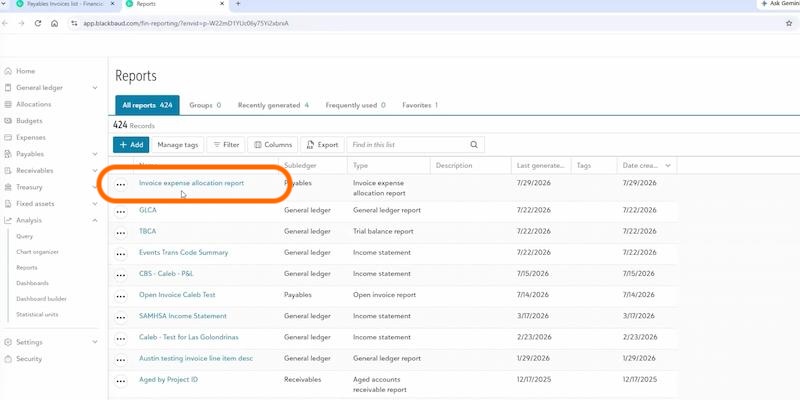
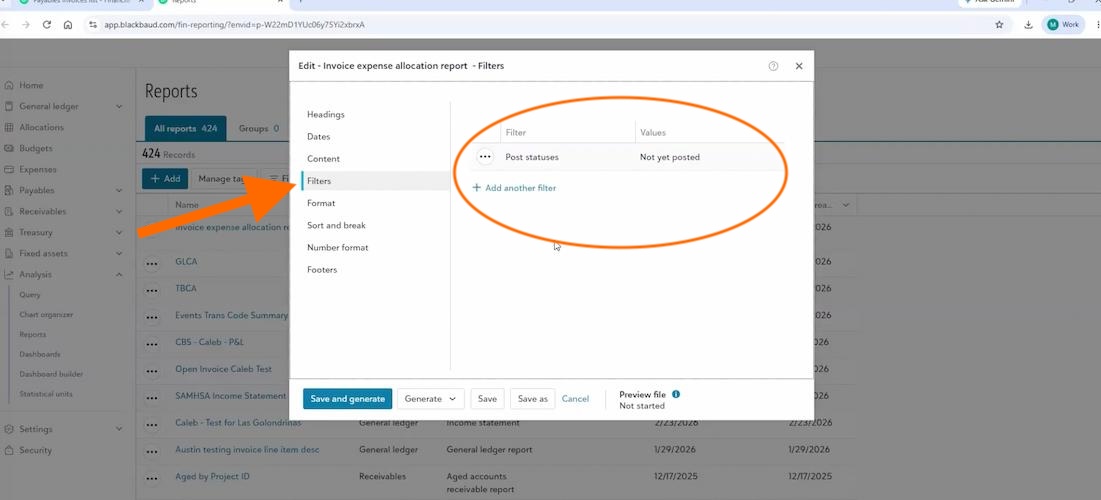
Filter the report by:
Not Yet Posted
This lets you review the expense accounts assigned to invoices that have not reached the General Ledger yet.
For nonprofit finance teams processing numerous invoices, the report provides a useful checkpoint. Instead of discovering an incorrect allocation after the accounting period has been posted, you can review the expense coding while the invoice can still be edited directly.
Building this review into your Blackbaud nonprofit accounting software Accounts Payable process can also make month-end review easier, particularly when several employees are entering or approving invoices.
Raiser’s Edge NXT and Financial Edge NXT Training and Consulting Services
Capital Business Solutions provides Raiser’s Edge NXT and Financial Edge NXT training and consulting for nonprofits that need more support than a standard software tutorial can provide. Our Raiser’s Edge consultants work with staff on the actual workflows, reports, and processes their organizations use every day.
Our support for nonprofit teams using Blackbaud software solutions includes:
- Help reviewing and improving existing workflows when staff are spending too much time on manual steps or workarounds.
- Guidance on reports and queries so teams can find the information they need and understand how data is being recorded.
- Training for new employees or existing staff who need a stronger understanding of specific Blackbaud functions.
- Assistance with software configuration, process changes, and troubleshooting when an organization’s current setup is no longer working well for its team.
- Cross-functional guidance for nonprofits using both Raiser’s Edge NXT and Financial Edge NXT and needing their fundraising and finance processes to work more effectively together.
Rather than teaching every feature in the software, Capital Business Solutions’ Raiser’s Edge consultants focus training on the tasks your staff is responsible for, including the areas where errors, reporting questions, or inefficient processes are creating the most difficulty.
How to Adjust General Ledger Distribution FAQs
Can I change a GL expense account before an invoice is posted?
Yes. For an unposted and unpaid invoice, change the Approval Status from Approved to Pending if necessary. Reopen the invoice, correct the GL expense account, and save the change before posting.
Why can’t I edit the expense account on an invoice in Raiser’s Edge NXT?
You may not be able to edit the expense account because the invoice has an Approved status. In the Raiser’s Edge workflow, changing the Approval Status to Pending allows you to reopen the invoice and make the correction.
How do I correct a GL distribution after an invoice has been posted?
To correct a GL distribution after an invoice has been posted and paid, edit the distribution and save the change. Complete the Create Distribution Adjustment popup that appears, including the adjustment dates and reason for the correction.
What date should I use for a posted invoice distribution ddjustment?
The Adjustment Post Date should match the original Invoice Post Date. Check the original invoice posting information before completing the Distribution Adjustment.
When will the distribution adjustment be posted?
The saved Distribution Adjustment is picked up the next time the applicable subledger is posted. If you have made the correction but do not yet see it reflected in the General Ledger, check whether the subledger has been posted since the adjustment was created.
How can I find incorrect GL expense accounts in Raiser’s Edge before posting?
Run the Invoice Expense Allocation Report and filter it by Not Yet Posted. Reviewing that report before posting gives your finance team an opportunity to identify and correct expense allocations while invoices are still easier to edit.
Schedule a Nonprofit General Ledger Adjustment Tutorial Today
Contact Capital Business Solutions for Raiser’s Edge NXT and Financial Edge NXT training and consulting tailored to the workflows, reporting needs, and day-to-day responsibilities of your nonprofit team.
To learn more, contact us today at (888) 249-6008 or through our easy to use online contact form.