Blackbaud Financial Edge NXT is cloud-based fund accounting software designed for nonprofits and mission-driven organizations. Finance teams use it to manage the general ledger, restricted funds, grants, projects, budgets, expenses, reporting, and other financial activity that must be tracked accurately across programs and funding sources. Its Receivables area functions as the platform’s accounts receivable module, giving users tools to bill clients, track balances, receive and apply payments, manage credits and refunds, and report on outstanding activity.

With Blackbaud’s Financial Edge NXT adding new Receivables tools as they transition to the latest web view version, nonprofit teams are tasked with learning new processes for its day to day operations. Before doing a complete overhaul of your procedures, it is important to understand which capabilities are available in web view, how those workflows differ from database view, and which settings or business rules affect the results.
How the Move From Database View to Web View Affects Receivables
Updates for Blackbaud’s accounts receivable module continue to go through its rollout stage for web view Receivables tools. Nonprofit finance teams should review how these changes affect their established billing, payment, and month-end routines.
The Same Financial Information Is Available in a Different Workspace
Database view is Blackbaud’s traditional interface, while web view is accessed through a browser in Financial Edge NXT. The shift moves daily Receivables work from a desktop-style environment into an online workspace. For finance teams, this means easier access to records from a browser and a more consistent experience across other Financial Edge NXT functions.
Navigation Changes Where Users Begin a Task
In database view, users may be accustomed to starting from a menu or a specific transaction screen. In web view, the same work may begin from a client record, transaction page, activity list, or settings area.
Invoice Applications Are Reviewed Differently
In database view, an invoice may display associated payments and credits directly on the invoice record. In web view, users open the related invoice line item and review the Applications tab to see how payments and credits were applied.
Business Rules and Defaults Have a Greater Day-to-Day Impact
Settings for automatic payment applications, duplicate-record warnings, payment terms, default accounts, and third-party payer responsibility become more visible in web view’s daily workflows. These settings affect how transactions are entered, how payments are applied, how balances age, and what staff sees when creating or updating records.
Posting and Month-End Procedures May Need to Be Rechecked
Posting, reporting, query access, permissions, and certain configuration tasks can still depend on the organization’s current setup and the specific feature’s release status. Before changing your nonprofit’s month-end responsibilities, teams should test the complete workflow.
That includes entering transactions, reviewing distributions, posting activity, confirming journal references, and validating reports such as aging, open items, and account distributions.
Staff Training Should Focus on Workflow, Not Just Navigation
The most important part of the transition from database to web view is helping users understand how the new process affects their daily responsibilities. Staff need more than a list of new menu locations. They need to know where to review balances, how to apply payments, when to use a reversal instead of an adjustment, and which settings affect the result.
A structured plan for Financial Edge software training can help finance teams adopt web-view Receivables tools without creating avoidable errors in billing, reporting, or client-account management.

What’s New in the Financial Edge Accounts Receivable Module?
Blackbaud’s Financial Edge accounts receivable module updates include both full transaction workflows and smaller improvements that affect how finance teams enter, review, and manage day-to-day accounts receivable activity.
Here are the key changes nonprofit finance teams should know when navigating Financial Edge NXT web view.
Client Records, Payers, and Billing Details
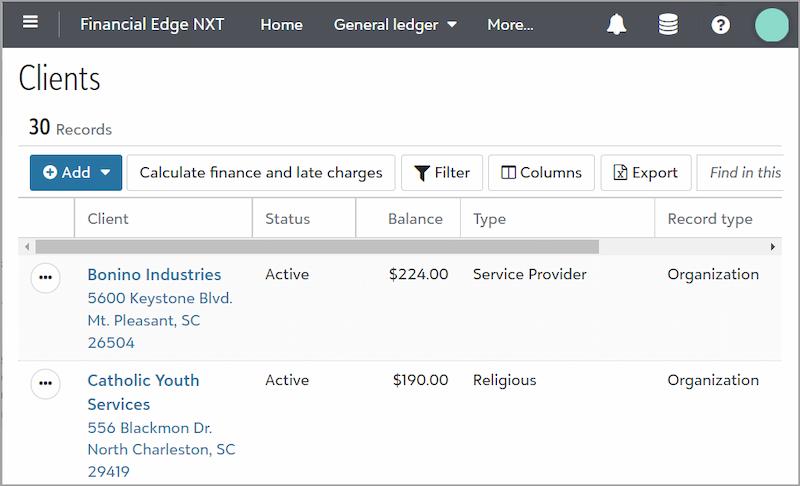
Web-view client records give users a central place to manage account information and review related Receivables activity, including the ability to:
- Add, edit, view, and delete individual and organization client records
- Add client status, address, contact information, data-entry defaults, and billing-item defaults
- Review or add charges, credits, invoices, returns, and refunds from the client record’s Activity area
- Manage notes, relationships, payer information, name formats, addresses, salutations, and custom fields
- Add a status and custom fields to actions created from client records
- Convert an individual record to an organization record, or an organization record to an individual record, when the wrong record type was created
- Determine who receives statements or statement copies
- Calculate finance and late charges for selected clients
- Add and manage fixed automatic payment plans
- Use EFT transactions for eligible fixed automatic payments drafted from a specified bank account
Third-Party Payer Responsibility
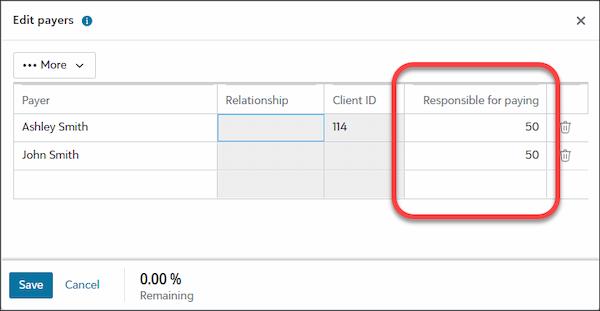
Third-party applications support situations where someone other than the client is responsible for all or part of a charge. In this context, “third-party” does not refer to software integration. It refers to an additional payer.
Teams can:
- Add another responsible payer from the client record
- Assign the percentage of the balance each payer is responsible for
- Use the Apply to owner’s charges business rule to determine how payments and credits apply when multiple parties share responsibility
- Update payer percentages later when billing responsibility changes
Invoices, Line Items, and Recurring Billing
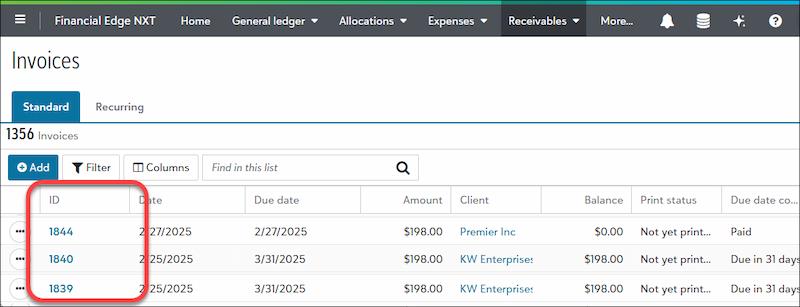
Financial Edge NXT’s web view invoice tools support standard accounts receivables billing and provide greater access to line-item details, enabling users to:
- Add, edit, delete, and view standard invoices
- Add new line items directly to an invoice record
- Review invoice summaries, balances, dates, custom fields, notes, and history
- Open line-item records to review billing items, balances, distributions, applications, and status
- Manage finance-charge billing items on invoice line items
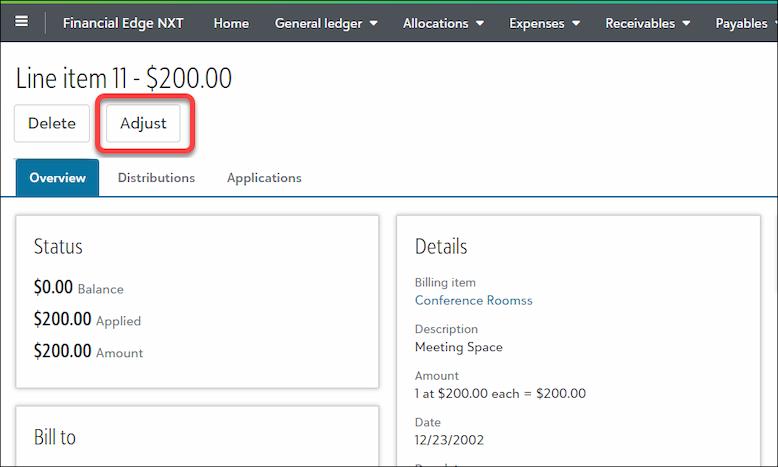
- Reverse posted line items using Delete, which creates a reversal entry rather than erasing accounting history
- Adjust posted line items by entering updated information, such as a date or reason
- View and generate existing recurring invoices based on selected filters and criteria
Payment and Credit Applications
The updated Financial Edge accounts receivable module from Blackbaud includes payment and credit application tools that help teams apply saved transactions to charges and invoice line items.
This makes it easier for finance teams to:
- Apply saved payments and credits to charges and invoice line items
- Enter a specific applied amount for each transaction
- Apply a payment automatically to the first eligible charge or line item
- Continue automatic application through later eligible items until the available amount is used
- Unapply all applications from a record when necessary
- Apply payments and credits directly from a charge or line-item record
- Edit non-distribution fields on records with applications, such as payment method, notes, description, and comments
Business rules can control whether new payments and credits apply automatically, prompt the user, follow client settings, or apply to the oldest or newest eligible charges.
Distributions Grid Improvements
Blackbaud has also improved data entry in the Distributions grid, allowing users to:
- Enter amounts and percentages more easily
- Move quickly between Split, Custom fields, and Delete columns
- Review distribution information when working with line items, payments, credits, charges, refunds, and adjustments
This is a small enhancement, but it can reduce friction for staff entering or reviewing transaction distributions.
Deposits, Payments, and Automatic Payment Calculations
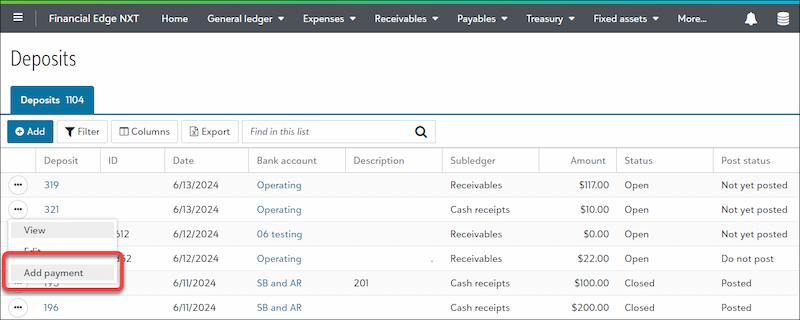
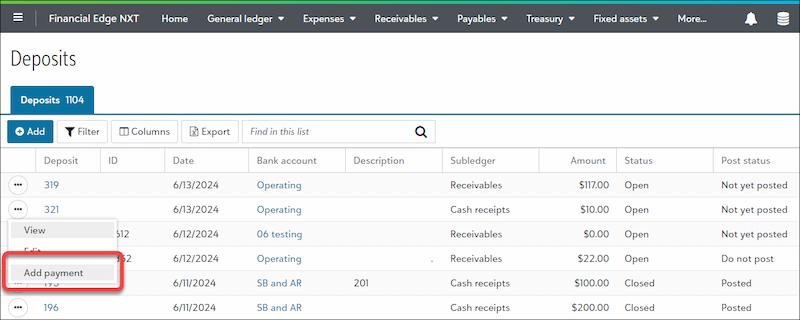
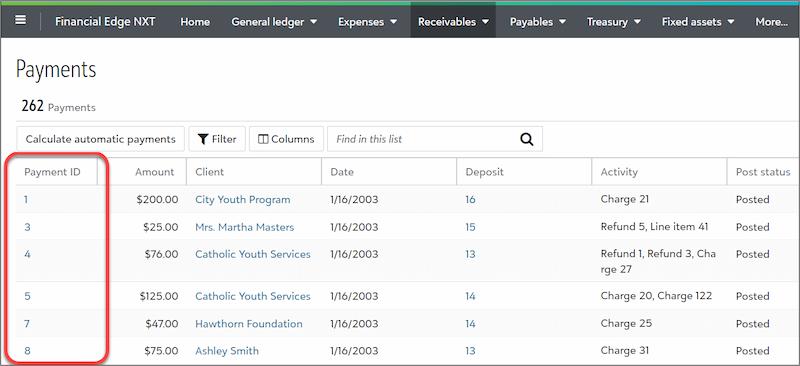
Receivables deposits and payments are available in web view, including payment defaults and selected payment-management tools, where teams can:
- Add, edit, void, and delete Receivables deposits
- Select Receivables as the deposit type when creating a new deposit
- Set defaults for payment date, amount, and payment method
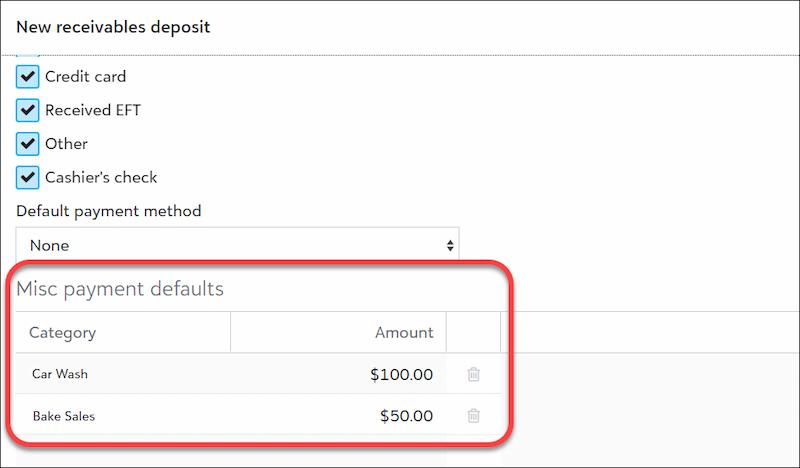
- Create miscellaneous-payment defaults for recurring categories and amounts
- Add, edit, view, void, and delete payments from a deposit
- Review payment status, method, associated deposit, applications, distributions, and miscellaneous-payment details
- Split a payment between receivable activity and miscellaneous-payment activity
- Calculate fixed automatic payments and preview results before generating transactions
For posted payments, users can void the transaction by choosing whether to add a bank adjustment or reduce the deposit amount. The process also requires void and post dates.
Credits, Charges, Returns, and Refunds
Financial Edge NXT web view supports a broad range of receivables activity beyond invoices and payments. Nonprofit finance teams can easily make adjustments including the ability to:
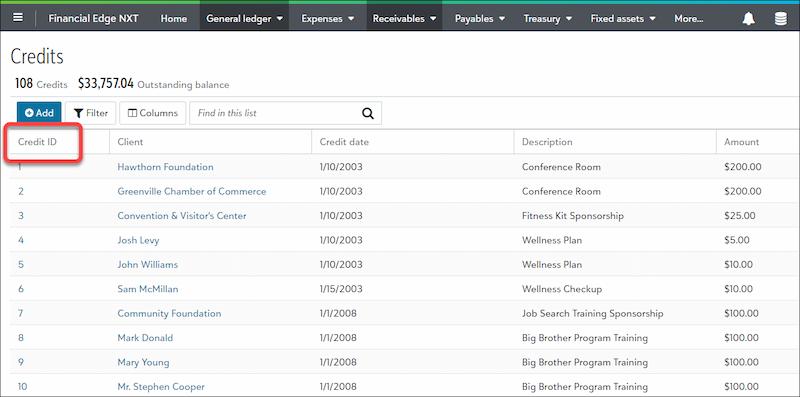
- Add, edit, reverse, and delete credits
- Review credit status, billing item, description, post information, distributions, and applications
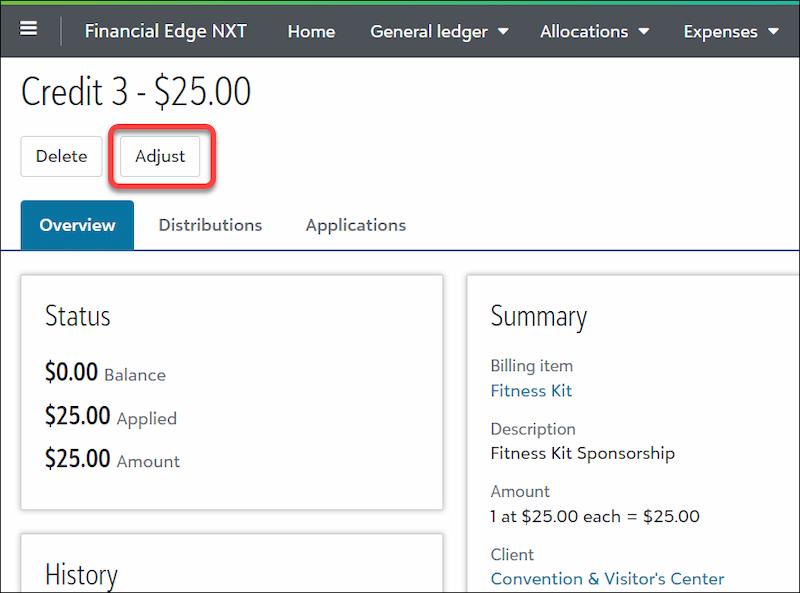
- Reverse posted credits or adjust them with updated details, such as date and reason
- Add, edit, reverse, and delete charges
- Reverse a posted charge through Delete or reverse it as a credit applied to the original charge
- Use partial charge reversals when only part of the amount should be removed
- View return records from the client Activity area
- Review return Overview, Distributions, and Applications information
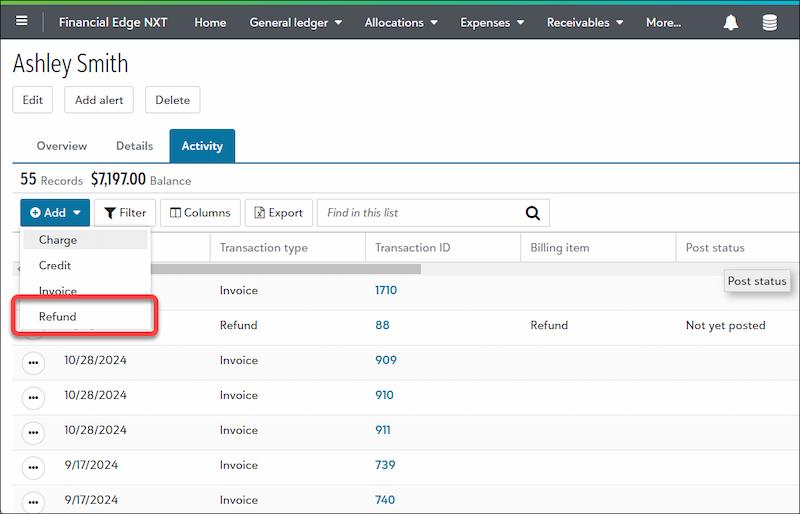
- Add and edit refunds
- Reverse or adjust posted refunds
- Generate and print refund checks from refund records
- Enter bank, payee, check number, description, and distribution details for refund checks
Billing Items, Settings, and Business Rules
The Receivables setup determines how transactions are created, communicated, applied, and reported. This makes it more convenient for users to:
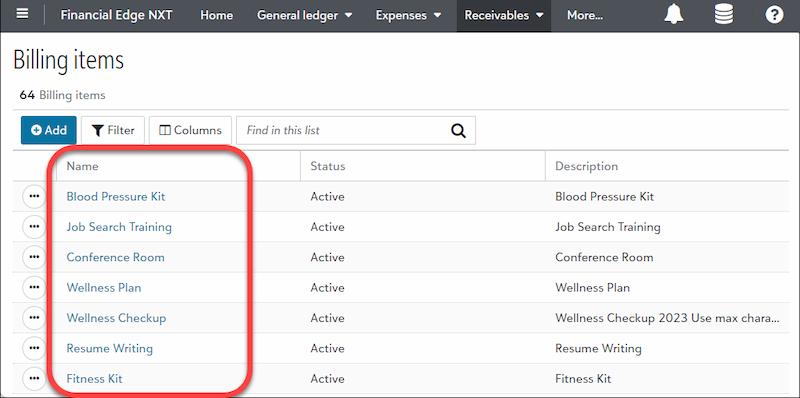
- Add, edit, and delete flat-rate billing items
- Add, edit, and delete variable-rate or quantity billing items
- Add, edit, and delete product billing items
- Manage finance-charge, refund, and sales-tax billing items
- Review billing-item descriptions, status, comments, and history
- Configure aging information, statement information, payment terms, default accounts, and contact details
- Set addressee and salutation formats
- Manage duplicate-record warnings for charges, credits, invoices, and payments
- Configure automatic-application behavior
- Configure payer-responsibility rules
- Use payment terms, including early-payment discounts when applicable
Duplicate-record warnings only appear when the related Warn user business rule is selected. This can help staff identify potential duplicate charges, credits, invoices, or payments before saving a record.
Attachments and Custom Fields
Attachments and custom fields within the Financial Edge accounts receivable module give organizations more ways to retain supporting details in the workflow.
This enables being able to:
- Add or link attachments to client, deposit, charge, standard invoice, payment, credit, billing item, refund, and return records
- Upload supporting PDFs, spreadsheets, images, Word documents, agreements, approvals, or related correspondence
- Create custom fields for Receivables records
- Use custom fields for reporting, workflow tracking, client classification, or internal review procedures
Custom fields were previously called “attributes” in database view.

Communications, Reports, and Grant Reimbursements
Financial Edge NXT’s web view also includes tools for client communication, reporting, and grant-related receivables activity, to:
- Add, edit, rename, view, and generate statements
- Manage invoice forms and receipt forms
- Search, sort, review, and export forms to PDF
- Create reimbursement rules for reimbursable grant funding
- Track qualified expenses for reimbursement
- Request grant reimbursements through Receivables
- Generate charge and line-item transactions from eligible reimbursement activity

Receivables reporting includes:
- Transaction List: Lists transactions for selected clients over a selected period
- Invoice Report: Lists invoice and return information, including invoice-order and return-date options
- Project Distribution Report: Shows debit and credit amounts for projects created by Receivables activity and adjustments
- Account Distribution Report: Reviews debit and credit amounts created by Receivables transactions and adjustments
- Aged Accounts Receivable Report: Shows balances by aging period to identify current and past-due balances
- Open Items Report: Shows open transactions and can help identify subsidiary-ledger activity contributing to general-ledger differences
Journal References, Posting, and Query Access
Financial Edge NXT web view from Blackbaud also includes supporting tools for transaction tracking and reporting.
This allows teams to:
- Customize journal references in General Ledger posting settings
- Use prefixes, journal values, field details, and length settings to identify adjustments, reversals, and transactions
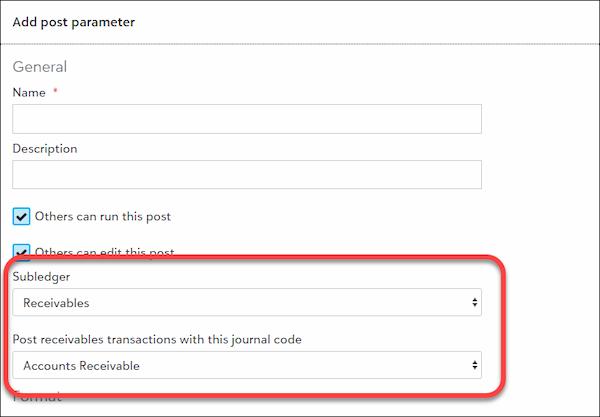
- Add Receivables posting parameters by selecting Receivables as the subledger and assigning a journal code
- View supported queries created in database view
Financial Edge Training With Capital Business Solutions
As more Receivables functions move into Financial Edge NXT web view, training can help nonprofit finance teams update familiar workflows without disrupting billing, payment processing, reporting, or month-end work.
Capital Business Solutions provides customized Financial Edge NXT training for organizations using Blackbaud Financial Edge NXT, with support tailored to each team’s workflows and experience level.
With Capital Business Solutions, your team can expect:
- A dedicated Financial Edge consultant throughout training, implementation, and support
- A customized training plan based on your organization’s workflows, reporting needs, and current use of Financial Edge NXT
- Hands-on instruction using practical scenarios relevant to nonprofit finance work
- Guidance on web-view navigation, Receivables workflows, transaction management, reporting, budgeting, and daily financial tasks
- Training for staff with different levels of Financial Edge experience
- Flexible virtual, on-site, or hybrid training options
- Ongoing support and resources as your team adapts to new web-view functionality
Schedule Nonprofit Financial Edge NXT Training Today
Capital Business Solutions provides Financial Edge NXT training and consulting for nonprofits that need support with web-view navigation, transaction workflows, reporting, billing procedures, settings, and day-to-day financial management.
By providing your team with a focused review of the Financial Edge accounts receivable module, you support financial professionals in your organization to determine which business rules to update, what to validate in reporting, and how responsibilities should be assigned as more functionality becomes available in web view.
To learn more, contact us today at (888) 249-6008 or through filling out our online contact form to get started.